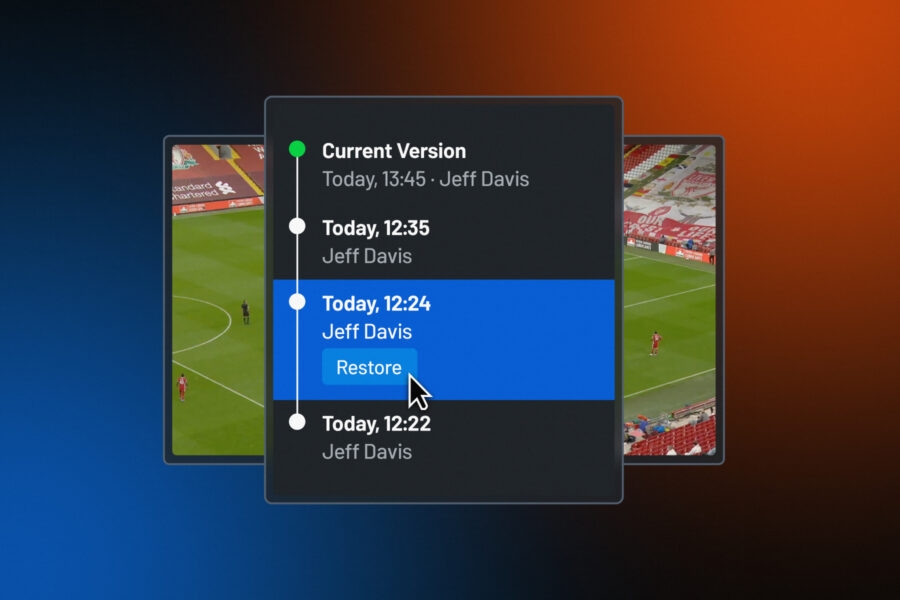
Playlist Version History is now live in Hudl Sportscode. Every sync saves a version. See what changed, see who changed it, and restore in one action.
See what changed
Open any past version and the panel shows a colour-coded view of how it differs from the version immediately before it. Green rows are additions. Orange rows are modifications. Red rows are deletions. Hover over any row for field-level detail.
You can move directly between past versions without returning to the current one first. If you want to compare a version from last Tuesday with one from two Thursdays ago, you navigate straight between them.
The diff view is read-only. Opening a past version does not change anything in the live playlist. It is a view, not a state.
Restore any version
To restore a past version, select it from the history panel and confirm. Sportscode handles the rest.
Before anything is committed, Sportscode downloads any footage associated with that version that is not already on disk. This step ensures the restored playlist will not be in a broken state with references to footage that is not available locally. If a file fails to download, the restore is cancelled. The live playlist remains untouched throughout.
Once all footage is confirmed on disk, the restore commits. The playlist is left unsaved for a final review, so the analyst can inspect what has come back before anything is pushed to Hudl. Saving and syncing completes the restore and creates a new snapshot, which means the state immediately before the restore is preserved in the history. If the wrong version was restored, the restore itself can be undone the same way.
The restore process was designed so that there is no point of no return. Every decision can be reversed.
Built for how teams actually work
The version history model is asynchronous: it does not require multiple analysts to be working at the same time or on the same connection. Each sync is a checkpoint. The history accumulates across a match week as work moves through a department.
A version saved on Monday is still accessible on Friday. A Thursday overwrite does not erase Wednesday's snapshot. An analyst working from a stadium with an unreliable connection syncs when they can, and each sync adds to the record.
There is no setup. The history begins accumulating from the first sync after the update goes live. Playlists that have never been synced before will start building a history from their first upload.
For heads of departments
Performance analysis departments are measured on what they produce for the coaching staff, not on how efficiently they manage file versions. When shared work is overwritten, the cost surfaces as a missed clip, a wrong presentation, or a question from a coach that takes an hour to resolve.
Version History makes the department's shared work auditable. Every sync is timestamped and attributed. If something changes unexpectedly, the panel shows who made the change and when. If the change produced the wrong outcome, it can be undone.
Departments can stop coordinating by hand to protect their work and start using that time for the preparation itself.
Getting started
No update to the application is needed beyond the standard release.
To find it, open any synced playlist and look for the Version History panel in the right-hand sidebar. The history begins with the first sync after the update goes live.