# Filtering Your Film
Hudl gives you three ways to filter: the Filters button, the search bar, and the Filters button inside the Reports panel. All three apply the same filters across both the video view and Reports.
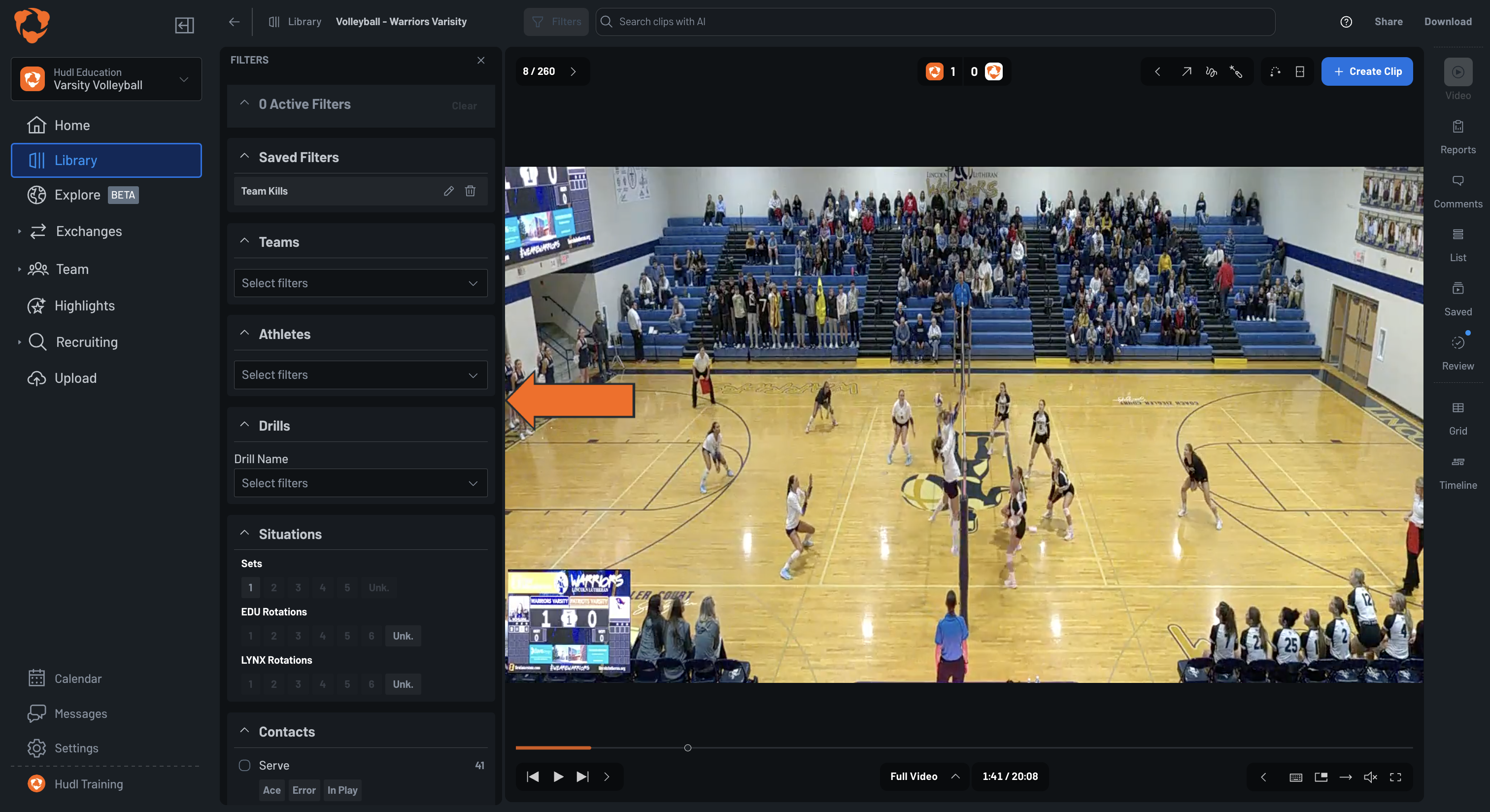
Open the Filters Panel
Click the Filters button to the left of the search bar at the top of the screen, or — if you're in Reports — click the Filters button next to the full-screen icon. Either option opens the Filters panel on the left side.
Filter via the Search Bar
For a quick filter without opening the panel:
- Click the search bar and type a player name or contact type (e.g., "Attack" or "#3 [Player Name]").
- Select a result to apply it as an active filter. It will appear in the search bar and in the Active Filters section of the panel.
- The search bar also shows your recent filters for quick reuse.
Filter Categories
The Filters panel includes the following categories:
- Teams — filter to contacts involving a specific team.
- Athletes — filter to contacts involving a specific player. Type a name in the dropdown to search.
- Drills — filter by drill name if drills have been tagged in your film.
- Situations — filter by set number (1–5 or Unknown) or rotation number (0–6 or Unknown).
- Contacts — filter by action type. Click a parent contact to select all results for that type, or click an individual tag to narrow by outcome:
- Serve: Ace, Error, In Play
- Serve Receive: Rtg 3, Rtg 2, Rtg 1, Rtg 0
- Attack: Kill, Error, In Play
- Set: Assist, Error, In Play
- Block: Block Assist, Block Solo
- Dig
- Cover
- Free Ball: Kill, Error, In Play
- Free Ball Receive
- Phase of Play — filter to First Ball or Transition.
- Location — filter by where an action happened or where the ball traveled. Click individual zones in the Action to Zone or Action from Zone grid to select them.
- Violations — filter by violation type.
- Annotations — filter to contacts that have drawing effects added.
- Custom — filter by custom types or additional tags if your team uses custom tagging.
Combine and Clear Filters
You can apply multiple filters at once. Active filters appear at the top of the panel. Click the × next to any filter to remove it individually, or click Clear to remove all active filters at once.
Save a Filter
Once you have your filters set, you can save the combination for quick access later.
- Apply one or more filters. A Save button appears in the Active Filters section of the panel.
- Click Save.
- Type a name in the Saved Filter Name field and click the checkmark to confirm.
Saved filters appear in the Saved Filters section of the panel and can be applied with a single click.
Filter Video to Find Moments • Filter or Perform Actions using AI Search