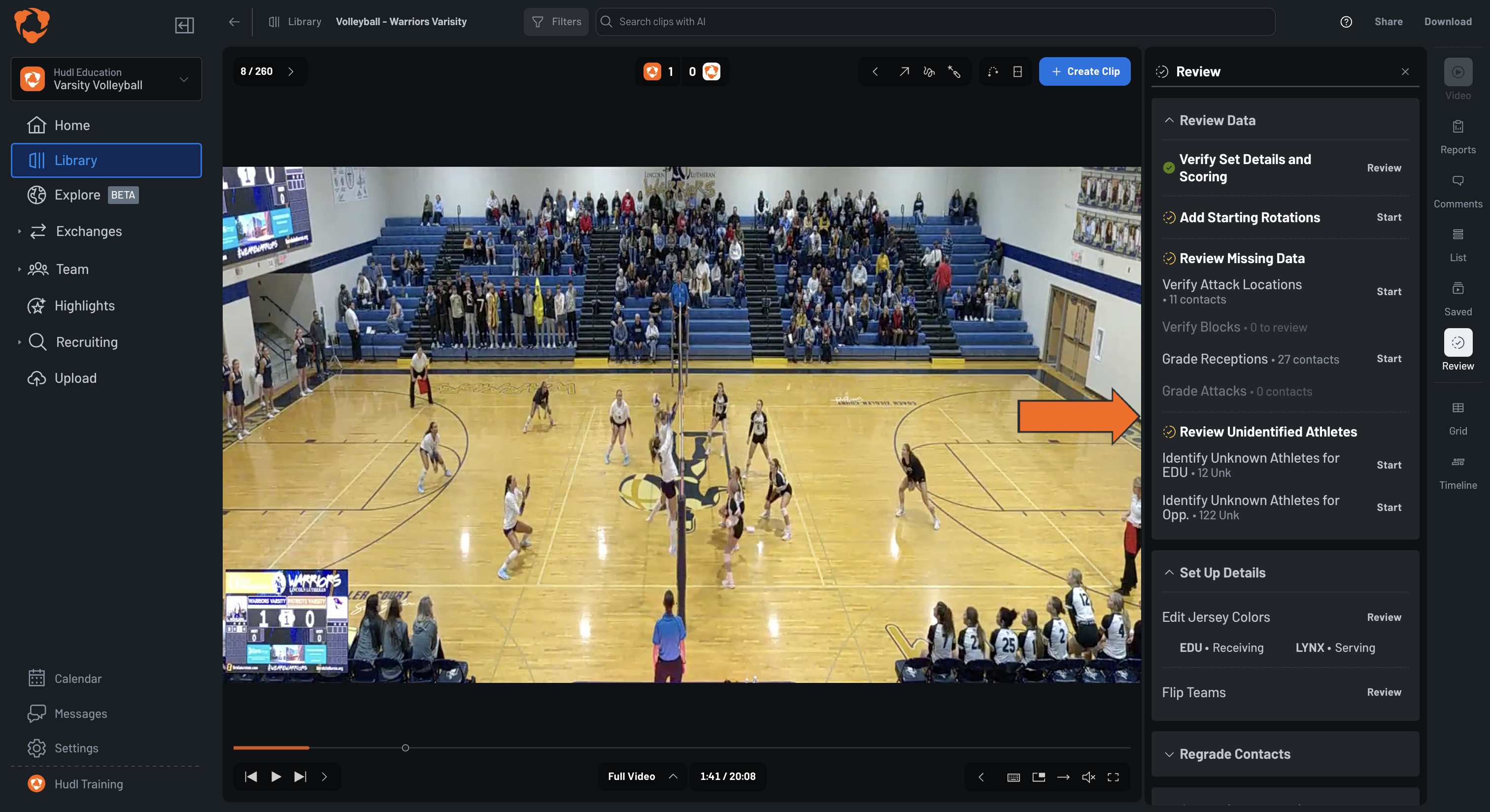
On this page: Verify Set Details and Scoring, Edit Starting Rotations, Court Corners, Review Missing Data, Review Unidentified Athletes, and Regrade Contacts
Use the Review tab to verify and complete your match data. Click the Review icon in the right sidebar to open it. Tasks marked with a green checkmark are complete; tasks with a spinning icon still have items that need attention. Completed tasks can still be reopened and re-reviewed at any time.
Calibrate the court boundaries in your video. Accurate court corners are needed for AI overlays and ball trajectories to display correctly.
Click the Review icon and select Review next to Set Up Court Corners.
Six labeled points will appear on the video: Net Top Left (Antenna line), Net Top Right (Antenna line), Far Line Left, Far Line Right, Middle Line Left, and Middle Line Right.
Drag each point to match the actual court boundaries in the image.
Click Save & Next when all six points are positioned accurately. The counter in the top right shows how many matches still need court corners set up.
The AI automatically identifies players in your film, but some contacts may be tagged to an unknown athlete. Use this section to assign those contacts to the correct player.
For each unknown athlete, a photo of the player is shown along with the action type and the number of contacts they were tagged in. Click View All Clips to watch all of that player's clips before assigning them.
Identify Unknown Athletes for Your Team
Click Start next to Identify Unknown Athletes for your team.
Select the correct athlete from the roster grid.
Click Save & Complete to assign the athlete and finish, or Skip & Complete to skip without assigning.
If the action type is incorrect, click Not a [Action]? at the bottom to delete the moment or change it to a different action type.
Identify Unknown Athletes for the Opponent
The process is the same as above.
Select the jersey number that matches the unidentified player.
Click Save & Next to move to the next unknown athlete, or Skip to come back later.
Use Regrade Contacts to correct the quality grades assigned to receptions and attacks. Each task steps through all contacts of that type one at a time.
Regrade Receptions
Click Start next to Regrade receptions for your team or the opponent.
For each reception, select the correct rating: Rtg 0, Rtg 1, Rtg 2, or Rtg 3. Click the button or use keyboard shortcuts (0, 1, 2, 3).
The list advances automatically as you grade.
Press U or click Undo to reverse the last grade.
Regrade Attacks
Click Start next to Regrade attacks for your team or the opponent.
For each attack, select the correct result: Error, In Play, or Kill. Click the button or use keyboard shortcuts (1, 2, 3).