Recording your matches correctly is the most important step in getting accurate, reliable AI breakdowns. Following these tips helps ensure your film processes smoothly and delivers the best results.
Recording Requirements
Following these requirements helps ensure accurate AI tracking and smooth processing.
Record from the middle of the back baseline on your team’s side (or as close as possible)
Avoid obstacles such as line judges, spectators, or equipment*
Frame the court correctly:
All four corners of the opposite court should be visible
Include the two far endline corners and the two corners under the antennae
Use a tripod:
Minimum height: 5 ft
Recommended height: 8–10 ft
Record in 1080p resolution at 30 or 60 fps
Most newer devices default to these settings
If unsure, search how to adjust recording settings for your device
Maintain one continuous recording per set
If using the mobile app, you may pause between sets
Do not tap Save and Exit until the entire match is finished
Record horizontally using a standard lens
Do not zoom out
Avoid wide-angle, fish-eye, or .5x lenses
If livestreaming to Hudl and concerned about network stability, use a backup camera recording locally to the device
Recording directly in the Hudl app is a simple way to capture high-quality film and streamline the upload process. This is the recommended option for livestreaming and is available exclusively on iOS devices.
Download and open the Hudl app on your iOS device.
Open the sidebar menu.
Select Record.
Make sure Hudl has access to your camera and microphone in your phone’s settings.
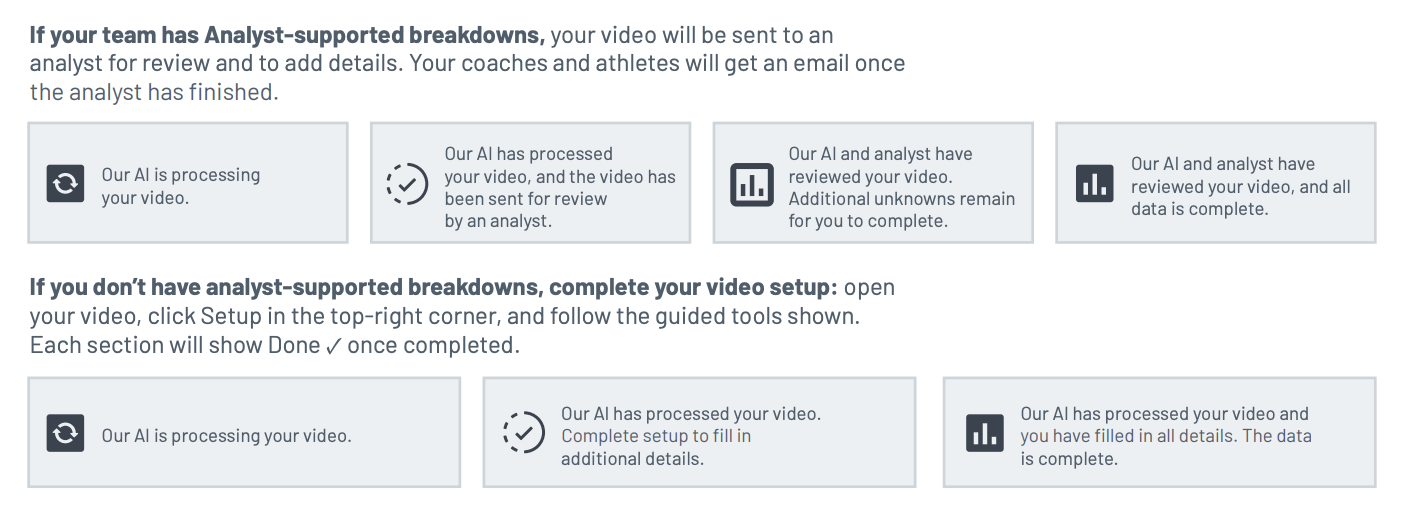
Once the AI breaks down your video , a few setup steps help ensure everything processes correctly.
The AI automatically breaks down the video once it’s uploaded, identifying the vast majority of actions and players in your game footage. After the AI processes the video, your next steps will depend on your team’s subscription. At any point, the icons shown below will appear on your video in the library to let you know what’s happening.
How to Use Grading Wizard
Use the Grading Wizard to review and grade specific actions with ease.
Navigate to the Library.
Select the video you want to review.
Open the Actions tab.
Click Filters.
Select the action you want to grade.
Click Start Grading Wizard.
How to Manually Identify Players
Identify players to make sure your film review is organized and ready to go.
Navigate to the Library.
Select the video you want to review.
Open the Setup tab.
Select Player Picture Identification.
Follow the on-screen steps to assign photos to players.