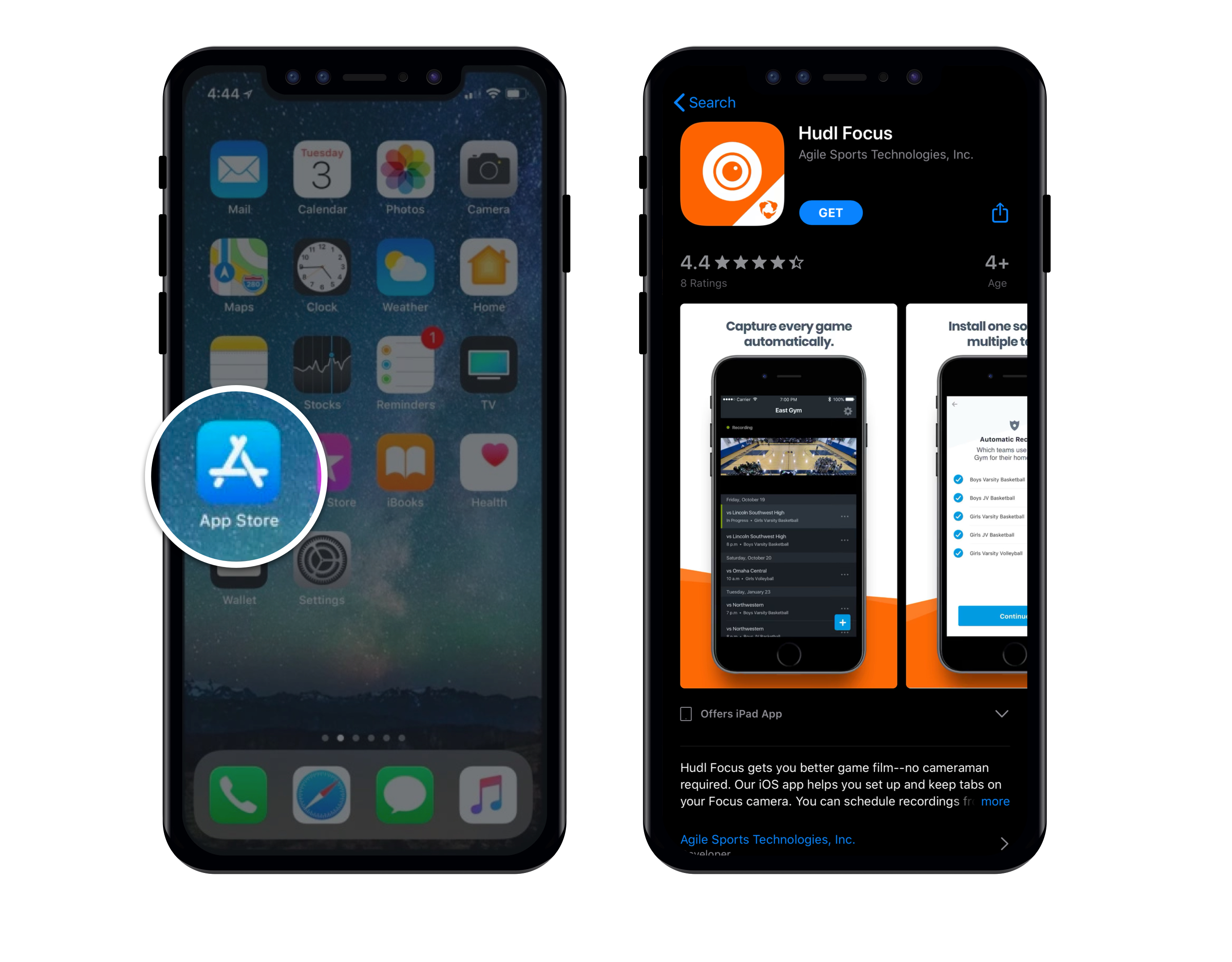
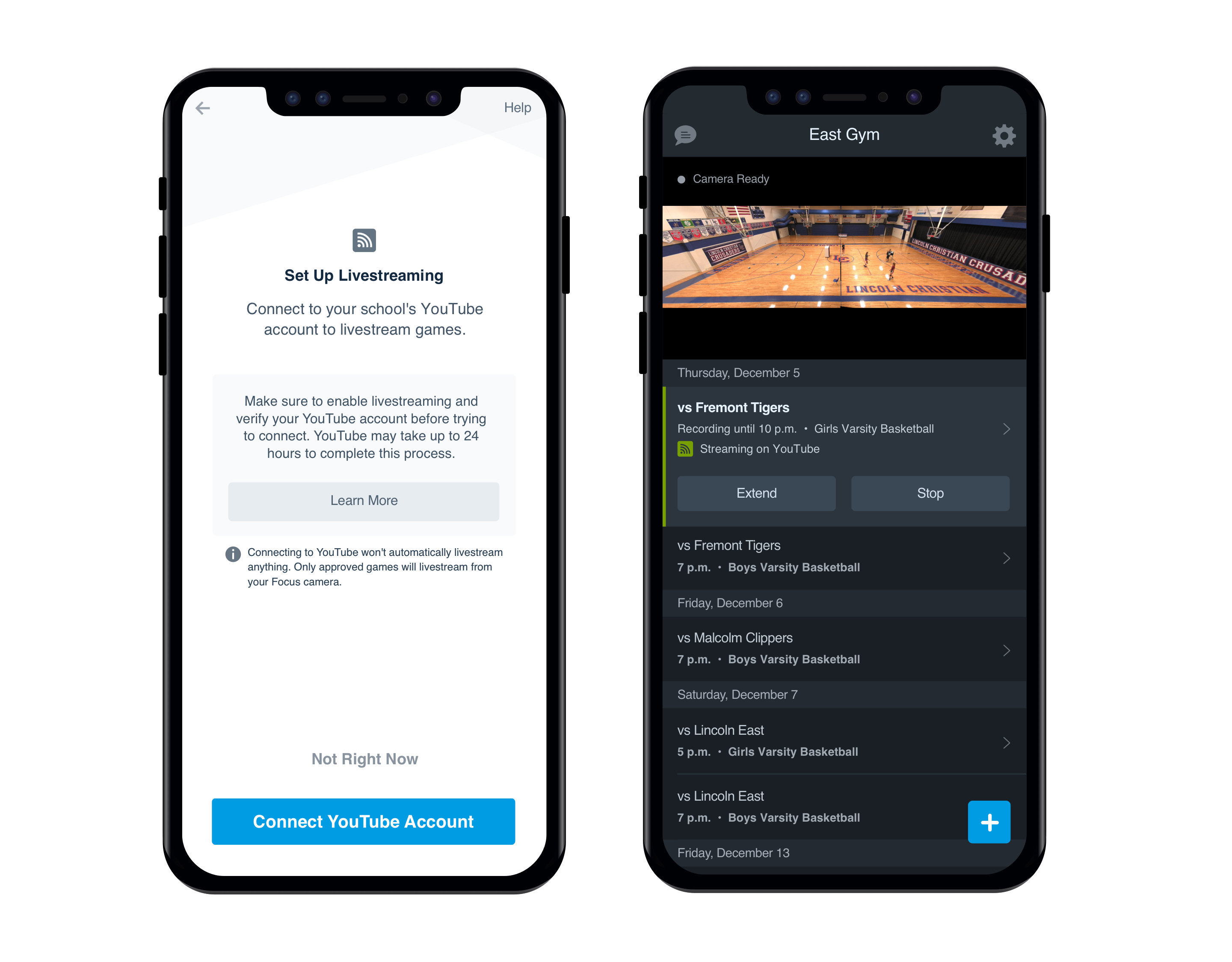
First things first—download the Focus app and make sure any other coaches and team administrators do too. The app is key for camera installation and operation.
Now that you’ve installed your camera, you might run into some of these logistical questions.
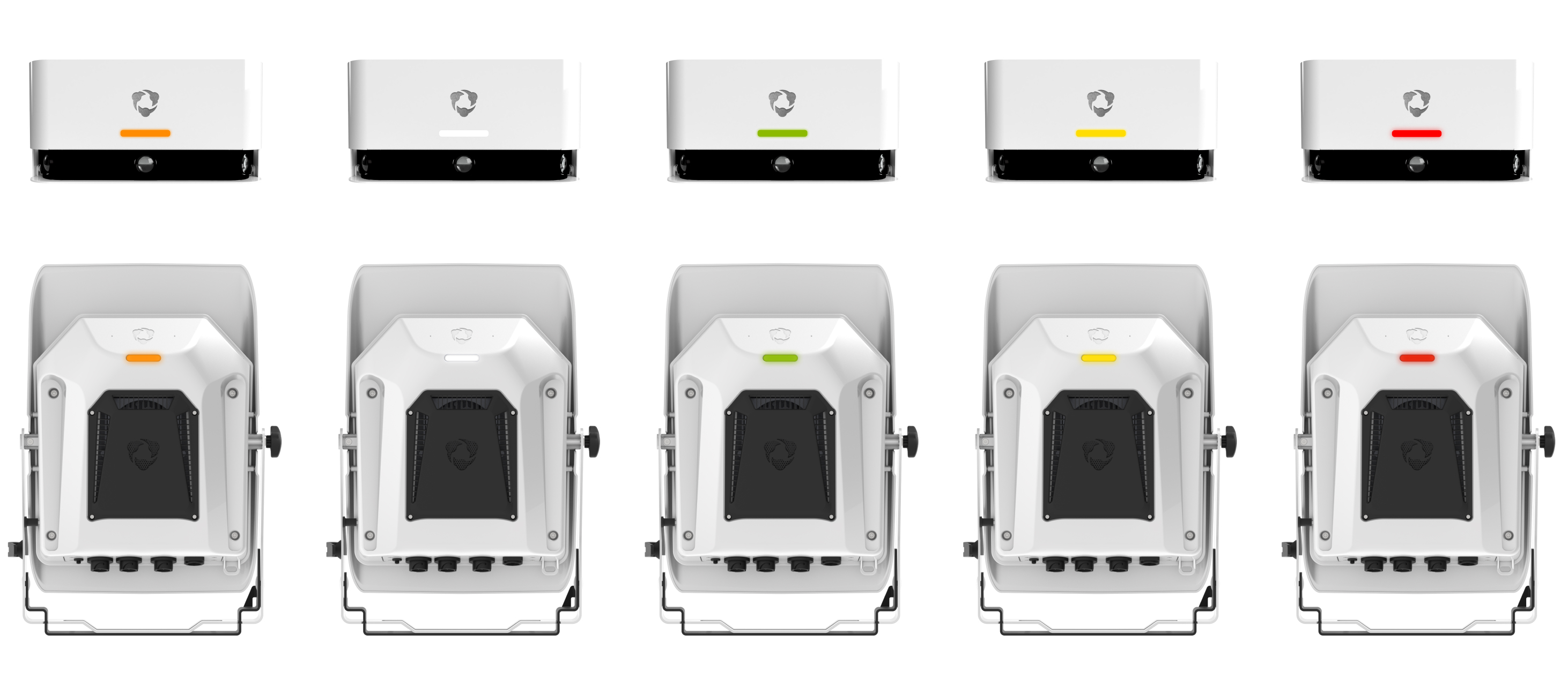
How do I know if I’m recording?
Look at the light on the device itself or open the Focus app to see the camera’s status.
No lights means the camera does not have power and can’t record.
A pulsing orange light indicates the camera is booting up.
A white light indicates the camera is in standby mode, and is ready to record.
A green light indicates the device is recording.
A solid yellow light means your camera needs to be activated, or there might be network issues. Check the Hudl Focus app for instructions on what to do next.
A pulsing red light is a sign that you should give our support team a call.
Okay, but how do I know everything is good to go?
The Focus app is your one-stop-shop for the status of your camera. When you’re logged in, it’ll recognize any outstanding actions you need to take to start use your camera and will recommend next steps. We're always proactively monitoring your camera for any issues too, so if something's not right, we'll reach out.
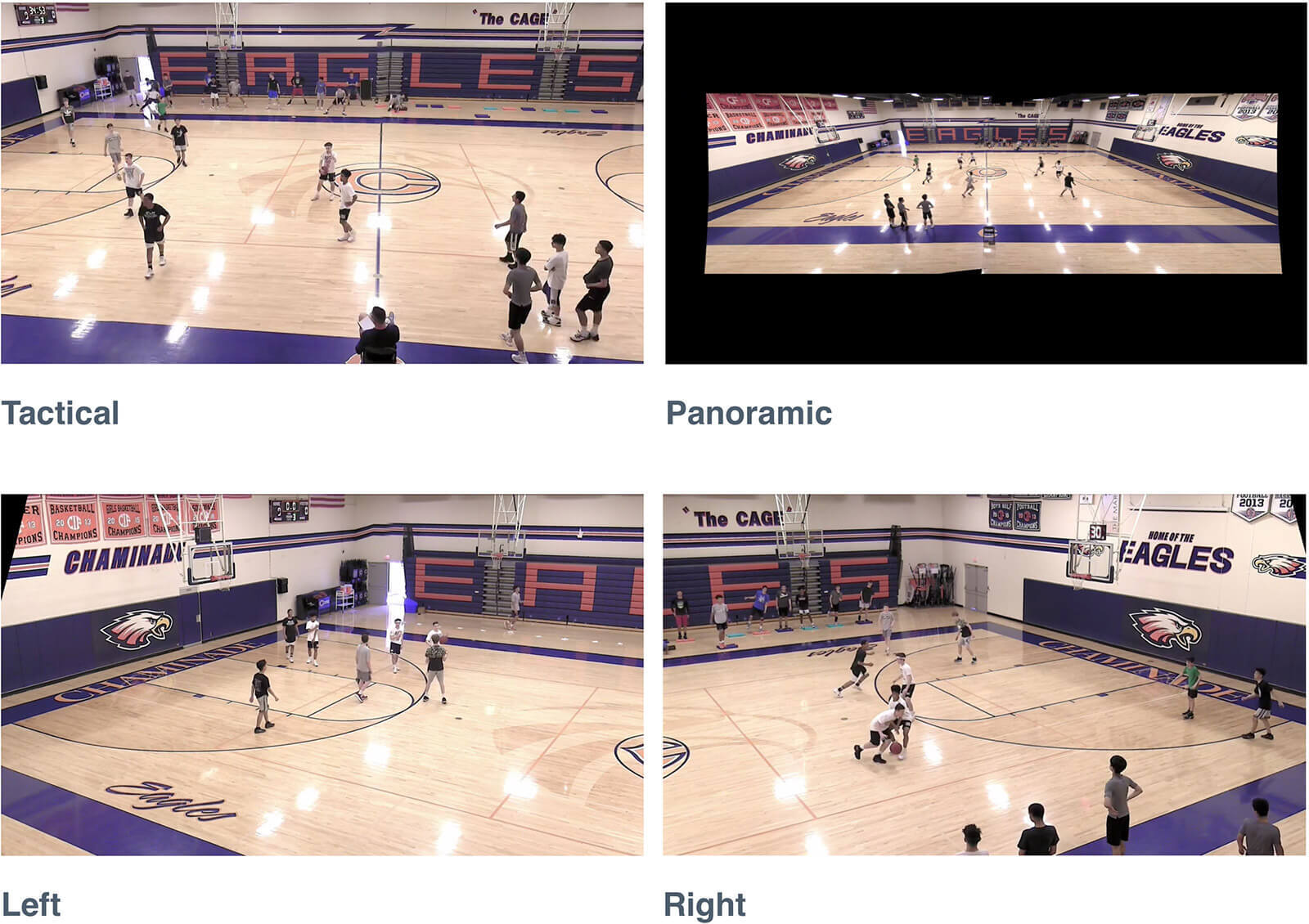
Which angles are available for my recording?
Basketball
Tactical: The camera follows plays as they move up and down the court during recording and zooms in when there’s action in the front court. Available for game and practice recordings.
Left and Right Court: This view allows you to see one half of the court at a time. Only available for practice recordings.
Panoramic: This angle is a full-court view. Available for game and practice recordings.
Volleyball
Tactical: The camera zooms into the gym. Available for game and practice recordings.
Left and Right Court: This view allows you to see one half of the court at a time. Only available for practice recordings.
Panoramic: This angle is a full-court view. Available for game and practice recordings.
Wrestling
Center mat: This is the angle wrestling matches are recorded with instead of a tactical view. Available for game and practice recordings.
Left and Right Court: This view allows you to see one half of the court at a time. Only available for practice recordings.
Panoramic: This angle is a full-court view. Available for game and practice recordings.
Other Indoor sports:
Tactical: The camera zooms into the gym. Available for game and practice recordings.
Left and Right Court: This view allows you to see one half of the court at a time. Only available for practice recordings.
Panoramic: This angle is a full-court view. Available for game and practice recordings.
Football
Tactical: The camera follows the play as action moves up and down the playing surface and will automatically pan and zoom depending on the action taking place. Available for game and practice recordings.
Panoramic: Includes a full, 180 degree-view of the playing surface. Available for game and practice recordings.
Left and Right Field: A static angle of each half of the playing surface. Only available for practice recordings.
Soccer
Tactical: The camera follows the play as action moves up and down the playing surface and will automatically pan and zoom depending on the action taking place. Available for game and practice recordings.
Panoramic: Includes a full, 180 degree-view of the playing surface. Available for game and practice recordings.
Left and Right Field: A static angle of each half of the playing surface. Only available for practice recordings.
Lacrosse
Panoramic: Includes a full, 180 degree-view of the playing surface. Available for game and practice recordings.
Left and Right Field: A static angle of each half of the playing surface. Only available for practice recordings.
Focus Point
Static: Focus Point provides a single static angle that will be aligned to your playing surface. Learn how to adjust your camera image.
What happens if a recording overlaps?
We weren’t kidding when we said Focus was a smart camera—it knows how to overlap events and upload the games under the correct schedule event and team. The camera starts recording at the scheduled time for each home game and has default recording times based on your sport. For global football (soccer), basketball, volleyball and lacrosse, Focus records for two and a half hours, unless it’s stopped or extended via the Focus app. For all other sports, Focus will record for three hours by default.
My school has two cameras in different gyms or fields and my team plays at both. How should I designate which one when I create a schedule entry?
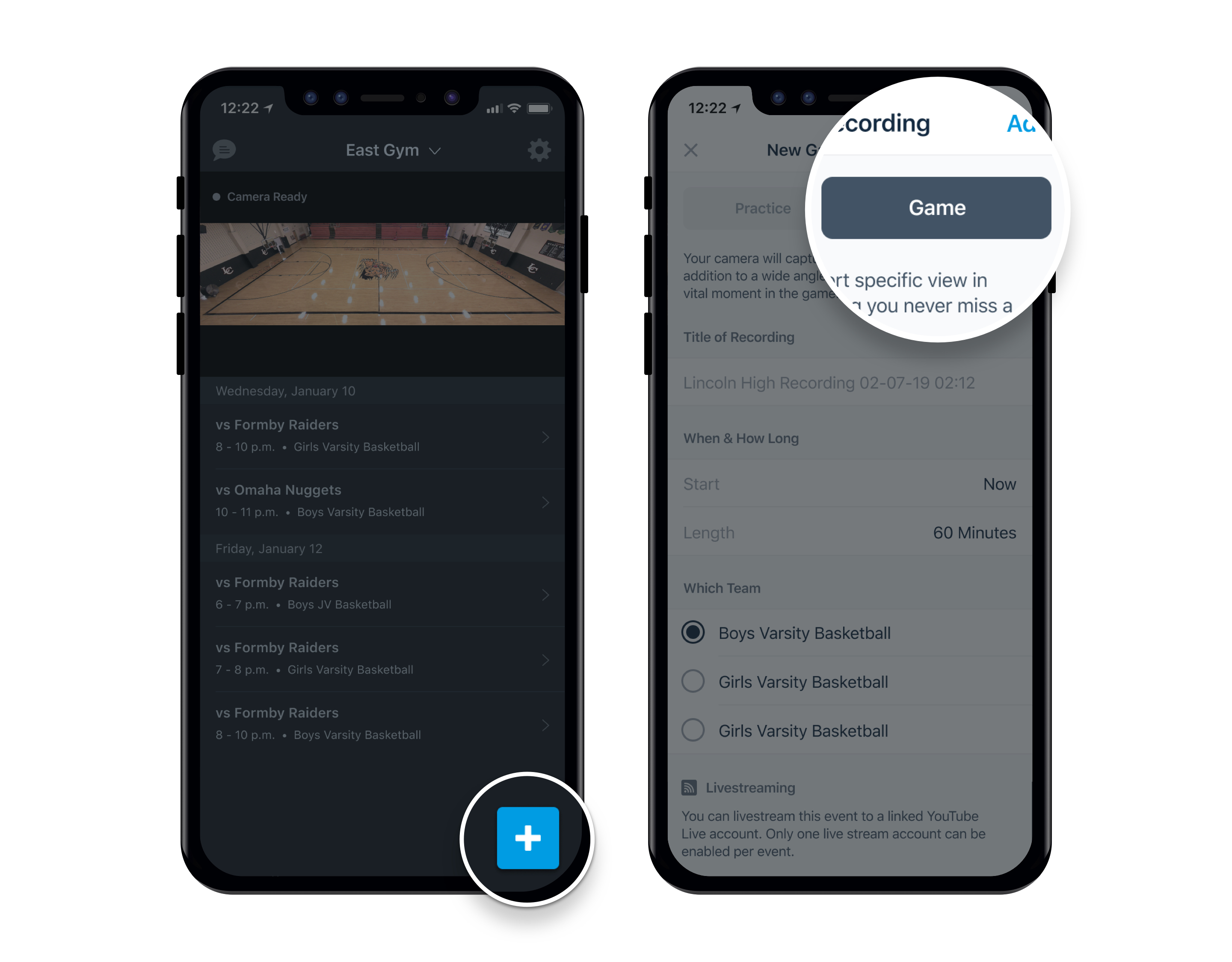
Your team will be automatically designated to use one camera during setup, so if you’re playing in the other gym, record from the Focus app.
Congrats—you now have HD video. Here’s how you can make the most of it.
Review game film during practice.
With Focus, you’ll never need to worry about if a particular play was captured—so you can plan your practices around learning from last game’s key moments.
Film your practices.
And then watch your practice film...during practice. One way to track your team’s progress is recording each drill you run and labeling it so you can see how a player’s technique develops over the course of the season.
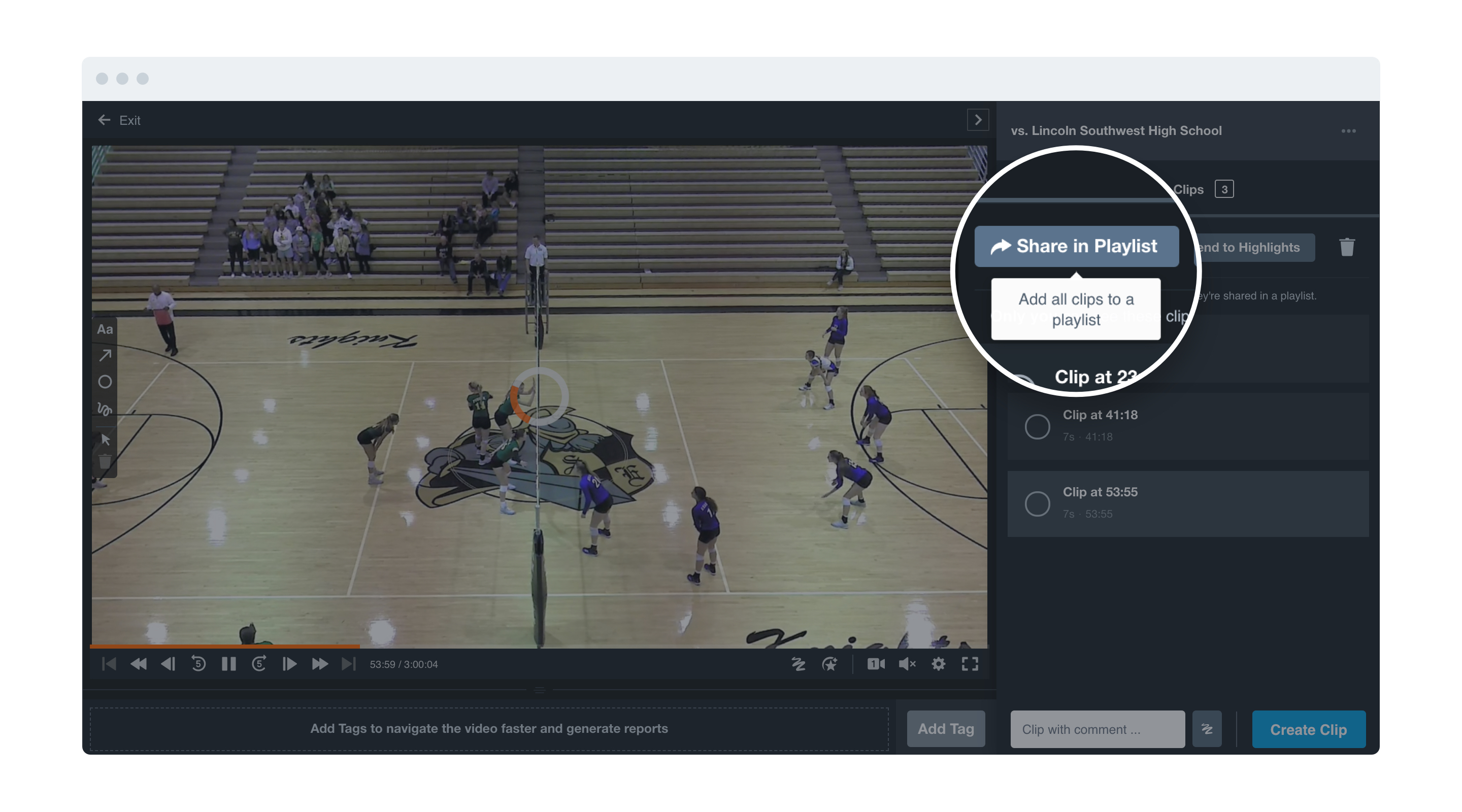
Practice recordings can be scheduled in advance, or you can start them as needed through the Hudl Focus app.
Create playlists for your athletes.
If your practice agenda is full, give your players some homework. By assigning them playlists to watch and comment on, you’ll help them increase their game IQ.
Livestream your games.
Livestream your games to Hudl Fan so your fans can catch your school's home games from afar with Focus. Add this option when inputting your team's schedule or add a livestream on-the-go with the Hudl Focus app.
You can also use Production Truck, a broadcasting software, to up your livestream value with customizable scoreboards, ads, commentators, replay, etc. to give your fans a professional grade livestream.
Use Focus to connect with other teams in your school and district.
Involve the whole school.
Any team that plays in the gym or field can use Focus — so once you’re set up, make sure the other coaches know about it too.
You can also use Focus to record non-sporting events like halftime performances and graduation — check with your Hudl rep for more info on how.
Get your away games.
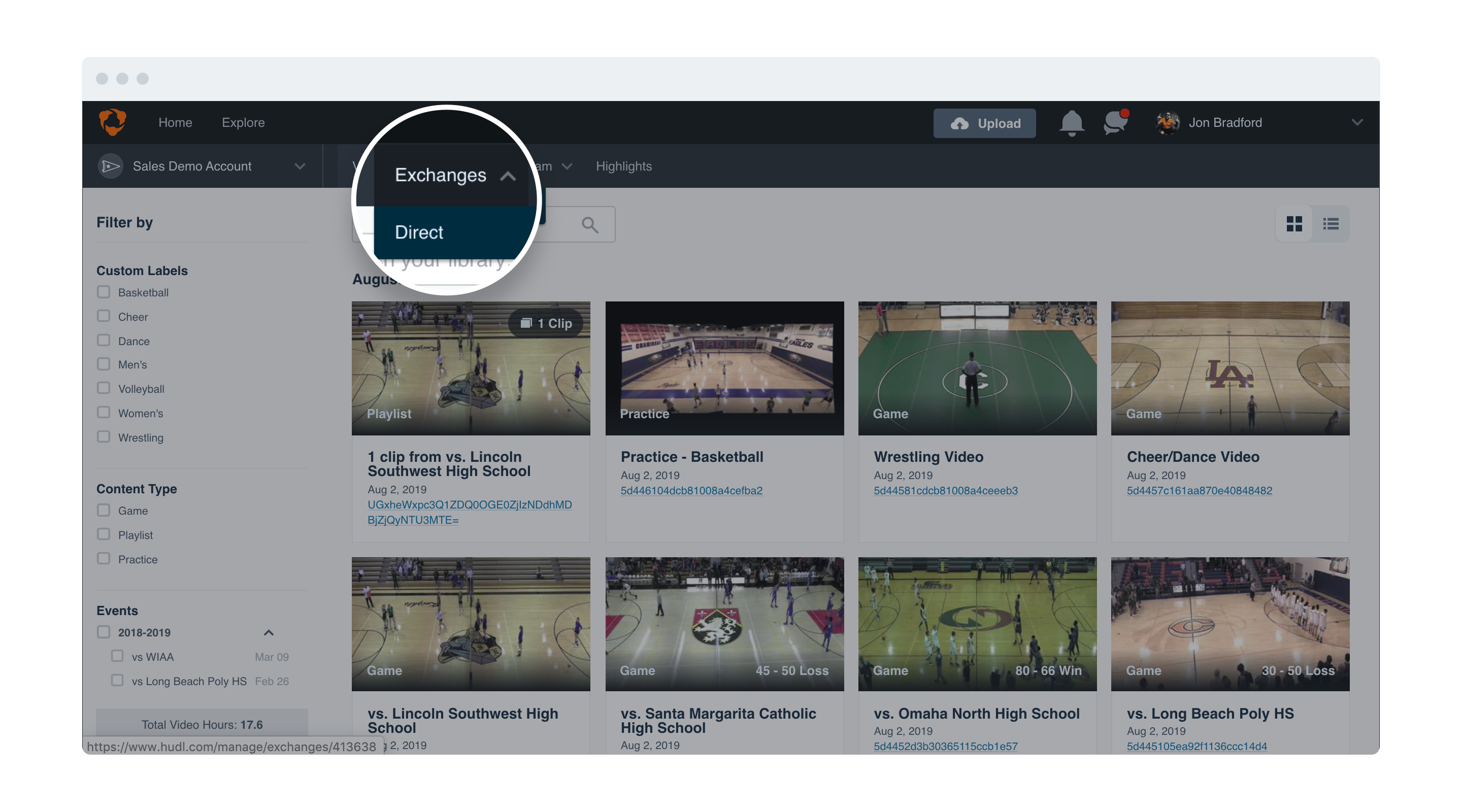
Take advantage of the Focus Exchange Network. For any away games played at a Focus-equipped stadium, the game film will automatically upload to your Hudl library. All you and your opponent need to do is confirm each other on your respective Hudl team schedules. That's it—Focus does the rest.
If you’re playing at a shared stadium or neutral site with a Focus camera, you’ll be able to gain access to record with the camera.