On this page: Tournament Prep, Recording Requirements, In-App Recording & Livestreaming, Upload from a Computer, Setting Up Your Videos, and Hudl Focus Point
Recording your matches correctly is the most important step in getting accurate, reliable AI breakdowns. Following these tips helps ensure your film processes smoothly and delivers the best results.
Recording Requirements
Following these requirements helps ensure accurate AI tracking and smooth processing.
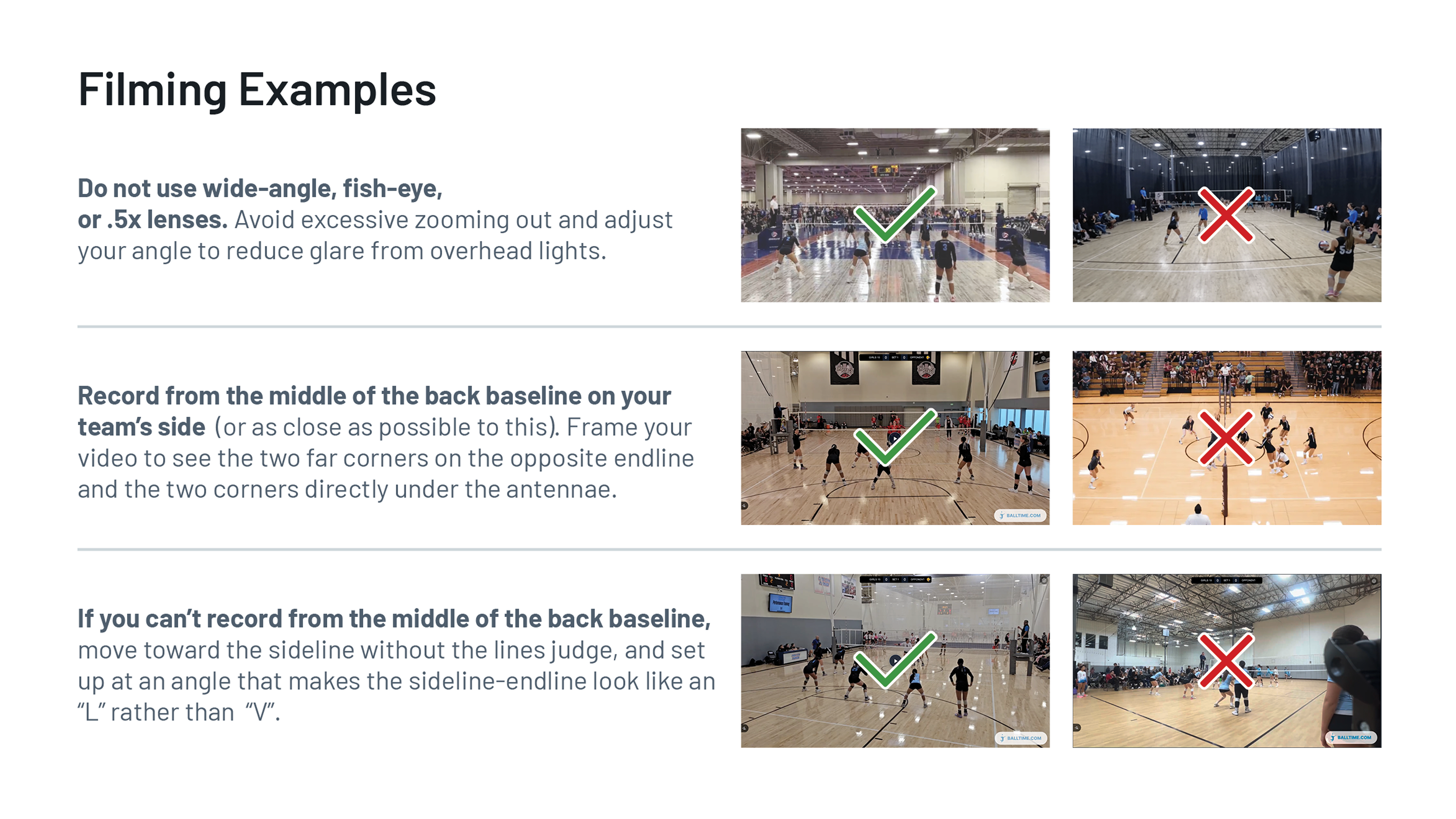
Record from the middle of the back baseline on your team’s side (or as close as possible)
Avoid obstacles such as line judges, spectators, or equipment
Frame the court correctly:
All four corners of the opposite court should be visible
Include the two far endline corners and the two corners under the antennae
Use a tripod:
Minimum height: 5 ft
Recommended height: 8–10 ft
Record in 1080p resolution at 30 or 60 fps
Most newer devices default to these settings
If unsure, search how to adjust recording settings for your device
Maintain one continuous recording per set
If using the mobile app, you may pause between sets
Do not tap Save and Exit until the entire match is finished
Record horizontally using a standard lens
Do not zoom out
Avoid wide-angle, fish-eye, or .5x lenses
If livestreaming to Hudl and concerned about network stability, use a backup camera recording locally to the device
Recording directly in the Hudl app is a simple way to capture high-quality film and streamline the upload process. This is the recommended option for livestreaming and is available exclusively on iOS devices.
Download and open the Hudl app on your iOS device.
Tap More at the bottom of the screen.
Tap Record.
Make sure Hudl has access to your camera and microphone in your phone’s settings.
If you recorded a match or practice footage outside of the Hudl app using your device's camera, you can upload videos directly from your camera roll into your library using the Hudl app.
Club teams can livestream matches directly from the Hudl app on an iOS device. Livestreaming requires a Wi-Fi connection or cellular uploads enabled in app settings (Settings → Video → Upload Clips Over Cellular).
Open the Hudl app and tap More at the bottom of the screen.
Tap Record.
Select the schedule entry for this match or tap + Add Event to create a new one.
On the recording screen, toggle Livestream on.
Ensure your device is in landscape mode to record.
Tap Record to begin. The stream may take 2-3 minutes to become available for viewers.
What the match is over, tap Pause, and then tap Save and Exit.
Fill out the event details and tap Done to upload.
Wait until you have a strong Wi-Fi connection before uploading.
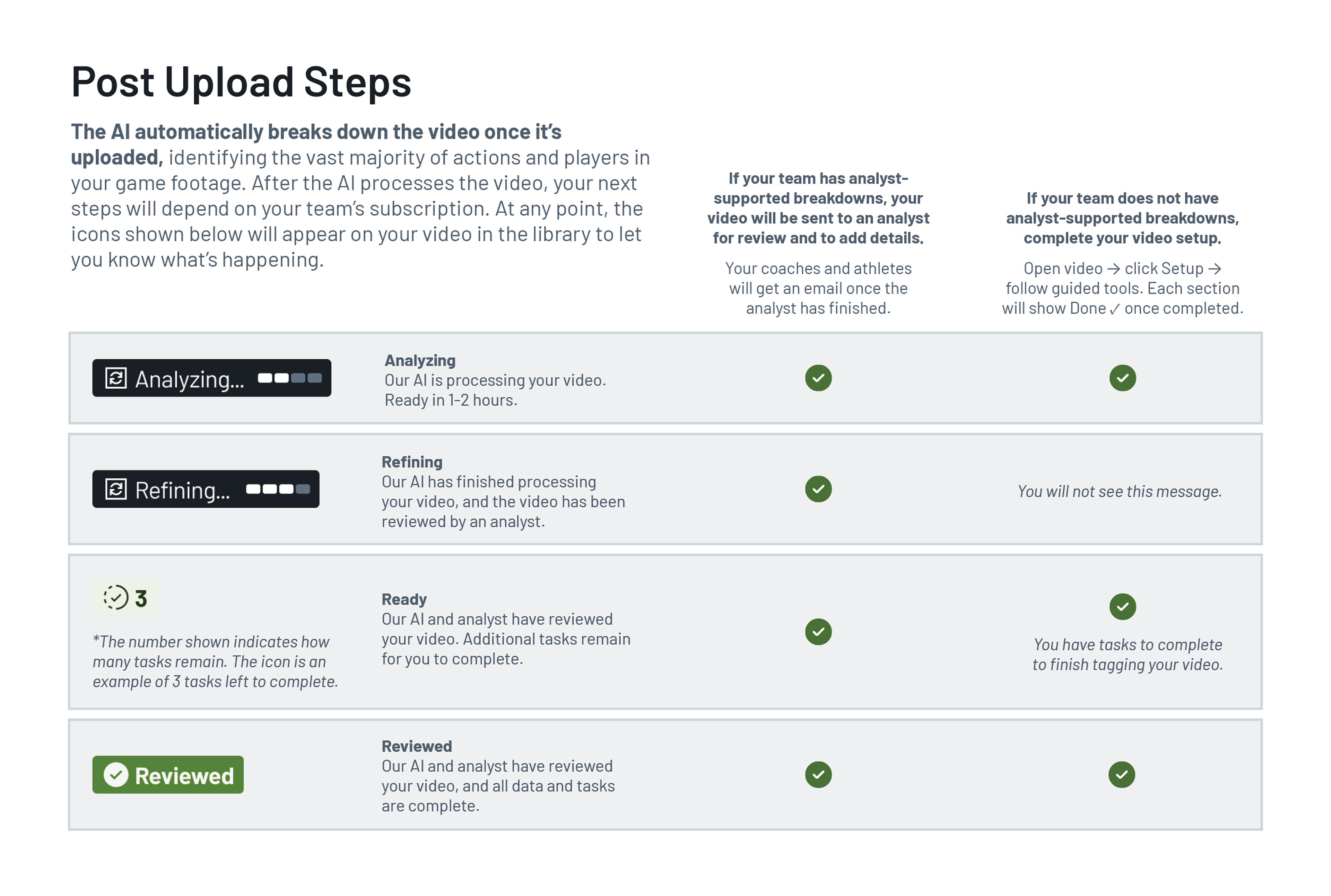
Once the AI breaks down your video, a few setup steps help ensure everything processes correctly.
We automatically break down the video once it’s uploaded. We’ll use AI to identify the vast majority of actions and players in your game footage. This also allows us to get more insights like ball trajectory and attack speed. After the AI processes the video our analysts will review the game to complete the breakdown. Like before, there may be some players we cannot identify. Rather than guess, we’ll flag these to you for review.
Hudl Focus Point is a fixed, wall-mounted camera that automatically records your home matches from the endline, giving coaches a full panoramic view of the entire court. Once installed, it handles recording and uploading to Hudl without requiring anyone to operate it on gameday.
What You Need Before Getting Started
Before the camera can record, a few things need to be in place:
Camera installed - Focus Point must be permanently mounted in your gym before it can be used. Installation is guided through the Focus app.
Power over Ethernet - The camera requires a POE connection to provide network and power to the camera.
Stable internet connection — At least 15 Mbps upload speed is needed to stream and upload footage.
Focus app — Every coach and team administrator who will manage recordings needs to download the Focus app and log in.
Correct placement is key to capturing the full endline angle. Ensure your camera meets the placement requirements prior to installing the camera.
Mount the camera behind the endline, no more than 5 ft left or right of the centerline
Mount height: 15–30 ft above the floor to capture the full court in frame
Use a sturdy, permanent structure such as a wall, beam, or scoreboard pole — not a portable stand
Getting Started
Download the Hudl Focus app on your device. Have all coaches and team administrators do the same.
Follow the in-app steps to install and calibrate your camera.
In the Focus app, go to Camera Settings and select Focus Point as your default angle.
Keep your Hudl schedule up to date. Focus Point uses your schedule to automatically begin recording before each home match — no manual start needed on game day.
After the match, footage is automatically uploaded to your Hudl library. No manual upload required.
Recording on Demand
If a match isn’t on your schedule, you can start a recording manually at any time from the Focus app. Tap New Recording, select your opponent if applicable, set the duration, and tap Start New Recording. For volleyball, the default recording window is 2.5 hours, and can be extended or stopped through the app.