Many teams currently don’t attach any video to their scouting reports. This isn't because they don't see the value — nearly every staff with access to film knows the worth of backing up data with clips in a film session. But the grind of downloading, exporting and dragging video into place just isn't worth the time commitment for many staffs.
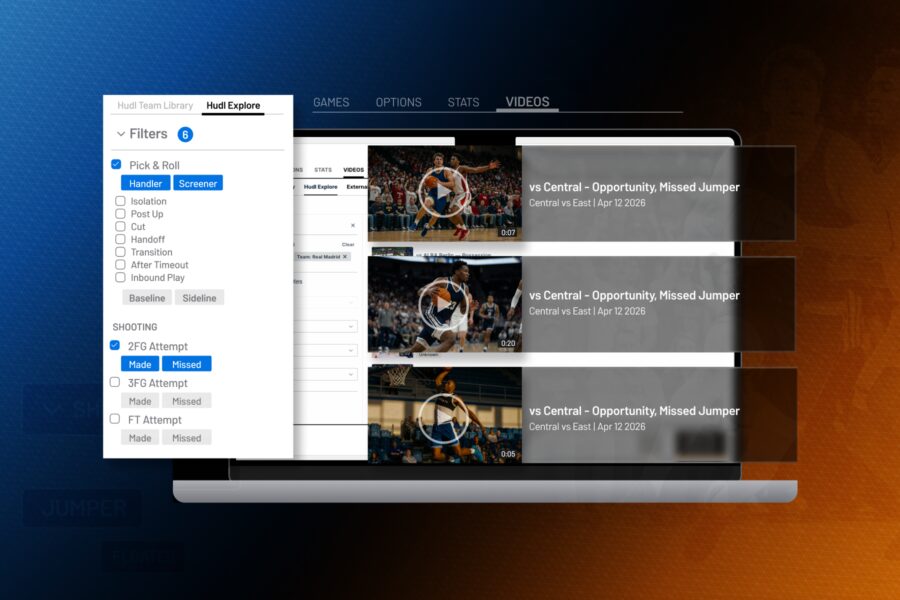
But now, that inefficient workflow is gone. The new Hudl Explore tab inside FastScout's ScoutBuilder lets coaching staffs pull clips directly from Hudl's global sport library and attach them straight to a report tile — without ever leaving the scout.
Three tools are now one
The old way of placing clips in a report was tedious. Find the clip in Instat, add it to your Hudl library, and go back into FastScout to attach it. Three tools, every time, for every clip. For coaching staffs building a full opponent breakdown that adds up fast. That kind of friction doesn't seem like a big deal once, but stacks up enough over a week of prep that most staffs may keep the scouting report and video siloed.
Hudl Explore collapses that into a single step. Filter by league, team and athlete — then narrow by moment type, shot type, defending and rebounding actions, or game situation. The clips you’re looking for surface.
Then just attach and move on—no switching apps, no downloading, no re-importing footage. The Hudl Explore tab is especially useful for small staffs, who may not have had time to pre-stage clips before building a scout. If the clip exists in Instat, it's available.
Opens already pointed at the right player
Personnel tiles — tiles built around a specific opponent athlete — are where coaching staffs attach video most. Hudl Explore is built around that reality.
Open the tab from a personnel tile and the league, team and athlete filters pre-populate automatically to match whoever the tile is about. You're already looking at that player's clips before you've done anything. You can toggle any filter to go somewhere else if needed, but you start zeroed in. For a staff working through a full roster breakdown the night before a game, that head start on every single tile matters.
More specific, not more clips
Every filter stacks on top of the others, and adding more narrows the results.
If you're deciding whether drop coverage works against an opponent's pick-and-roll ball handler, pull up “Pick & Roll → Handler,” and you see every possession where that player handled a screen. Add “Screen Defense → Drop” and the results narrow to only the clips where he handled a screen and the defense was dropped back. That's exactly what you need to make a coverage decision. The filter does the work that used to require scrubbing. The more specific the ask, the more specific the answer.
Game Range defaults to the current season but can be narrowed to the last couple of games— or widened to a player's full career. That helps when you want to know how someone is playing this month or how they handled a certain situation last season.
Hudl Explore goes a level deeper. Instead of searching a library you've built, you're searching one that already knows what every clip is — tagged by action, personnel and situation. The clip doesn't need to already be in your library to show up when you search for it. The Instat data connects it to your report automatically.
Now, every staff has the tool to add video to their scout efficiently. The barrier was never whether coaches wanted video in their reports. It was whether getting it there was worth the effort. Now that effort takes a fraction of the time.
The clip finds the coach. Not the other way around.
Note: Feature availability depends on your league and requires an active Instat subscription. Have questions or want to see a demo? Get in touch at hudl.com/contact/fastmodel