
# Page Contents
Tag Clips for Highlights • Create a Highlight—Coach • Create a Highlight—Athlete • Highlight Video Tips
Coaches and athletes can build personalized highlight reels directly from game film—using built-in editing features to showcase key moments and share with family, friends, and recruiters.
# Tag Clips for Highlights
Before you can build a highlight, you need to tag plays from your game film. Tagging sends clips to the highlight editor so you can select them when creating a highlight.
Tag a Single Play
- Click the Library tab and select a game from your library.
- Select a clip and click + Create Clip.
- Select the Saved module.
- From your saved clips, select the arrow.
- Choose your destination:
- Send to Team Highlights—if you're a coach creating a team highlight
- Send to Highlights (search for the athlete first)—if you're a coach creating an athlete highlight, or an athlete creating your own highlight.
Tag Multiple Plays at Once
To send multiple clips at once, select multiple clips from the saved clips panel, then select the arrow and follow the same steps above.
Pro Tip: Use filters when creating position- or skill-specific highlights (for example, attacking highlights). Filtering by action allows you to quickly add clips from the filtered results to build a focused, polished highlight.
# Create a Highlight—Coach
Once your plays are tagged, you can create a highlight reel for your team or for an individual athlete. The process in the highlight editor is the same for both—the only difference is how you get there.
Team Highlight
- Click the Highlights tab.
- To create a Team Highlight, click Create Highlight on the team profile page.
Athlete Highlight
- Click the Highlights tab.
- Click the Team tab from the team profile page.
- Select the athlete.
- Click Create Highlight on the athlete’s profile page.
Then continue to In the Highlight Editor below to create the highlight.
# Create a Highlight—Athlete
Once your plays are tagged, you can build a highlight reel directly from your profile.
- Hover over your name and click Your Highlights.
- Click the Create Highlights button.
Then continue to In the Highlight Editor below to create the highlight.
# In the Highlight Editor
The steps below apply whether you're a coach creating a team or athlete highlight, or you're an athlete creating a highlight.
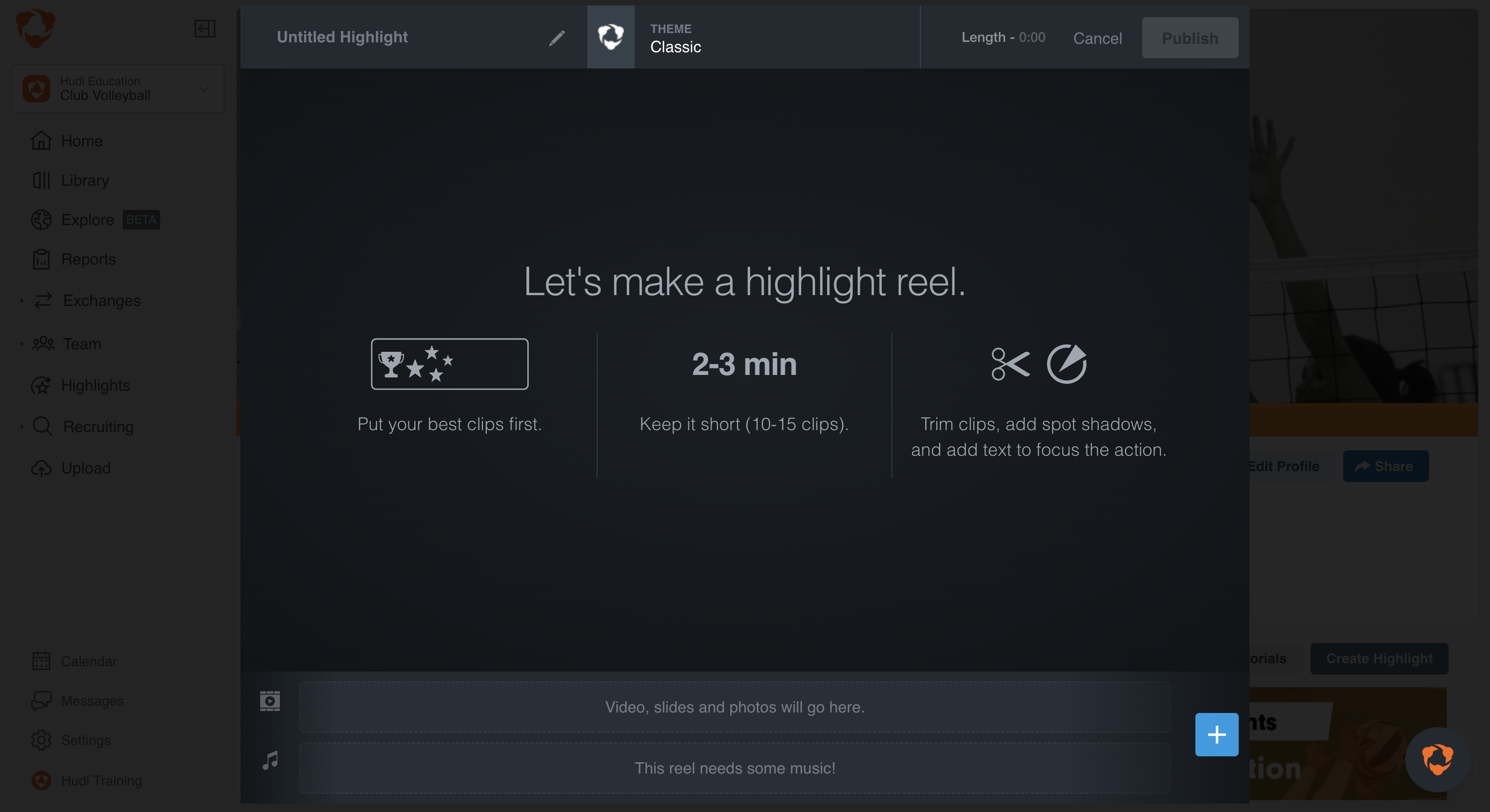
Click the pencil icon to name your highlight. Keep the title under 25 characters.
- Click the + icon to add content, including:
- Video
- Music
- Slides
- Photos
- To delete a clip, hover over the thumbnail and click the trash can icon.
- To edit a clip, hover over the thumbnail and click the pencil icon.
- To trim a clip, select the scissor icon.
- Add a spot shadow by clicking the circle icon.
- Add text by clicking the Aa icon.
- Preview by clicking the play icon. Click and drag clips to re-order them.
- Once finished editing, click Publish.
Create Highlights for Team & Athletes • Create Highlights—Athletes • Share Highlights
# Highlight Video Tips
Highlight videos are one of the most important tools in the recruiting process. A strong highlight reel helps coaches quickly evaluate your skills, role fit, and overall impact. Use the tips below to make sure your film stands out.
Lead With Your “Wow” Moments
You have 30–60 seconds to grab a coach’s attention, so make them count. Skip the slow build and place your strongest clips at the very beginning to spark interest and keep them watching.
Prioritize Position-Specific Skills
Coaches want to quickly see how you perform in your primary role. Lead with the skills that matter most for your position. For example, outside hitters should feature hitting first, followed by passing. Avoid opening with secondary skills like serving.
Focus on Quality Over Quantity
A short, high-impact video is more powerful than a long one filled with average plays. Aim for about 60 seconds of elite-level performance. If a clip doesn’t reflect your best, leave it out.